Can I use FrameFocus for online courses?
Yes. FrameFocus can help improve recorded course lessons, especially when teaching software, coding, design, spreadsheets, or step-by-step workflows.
摘要
Recorded lesson video editor. When students watch recorded lessons, small screen details can be easy to miss. FrameFocus helps teachers, instructors, and course creators zoom into important moments so lessons are easier to understand. Recorded lessons lose effectiveness when learners cannot clearly see the step being explained. 典型场景包括 Online course videos, Classroom recordings, Training walkthroughs, Slide and software lessons。 本指南说明 FrameFocus 这款网页端屏幕缩放编辑器如何帮助团队产出更清晰的演示与教程。
Recorded lessons lose effectiveness when learners cannot clearly see the step being explained. FrameFocus 在浏览器里用「点击对焦」解决问题:点选观众应关注的区域,调整时长与强度,无需重录或重型时间线剪辑即可完成导出。 It works well for product demos, tutorials, lessons, and customer support videos..
Recorded lessons lose effectiveness when learners cannot clearly see the step being explained.
添加顺滑缩放,精确提示观看焦点,无需重录即可改善教程观感。
Online course videos
Classroom recordings
Training walkthroughs
Slide and software lessons
在预览窗口标记缩放起点与终点;时间线上的琥珀色片段对应每一段缩放,便于微调时长。
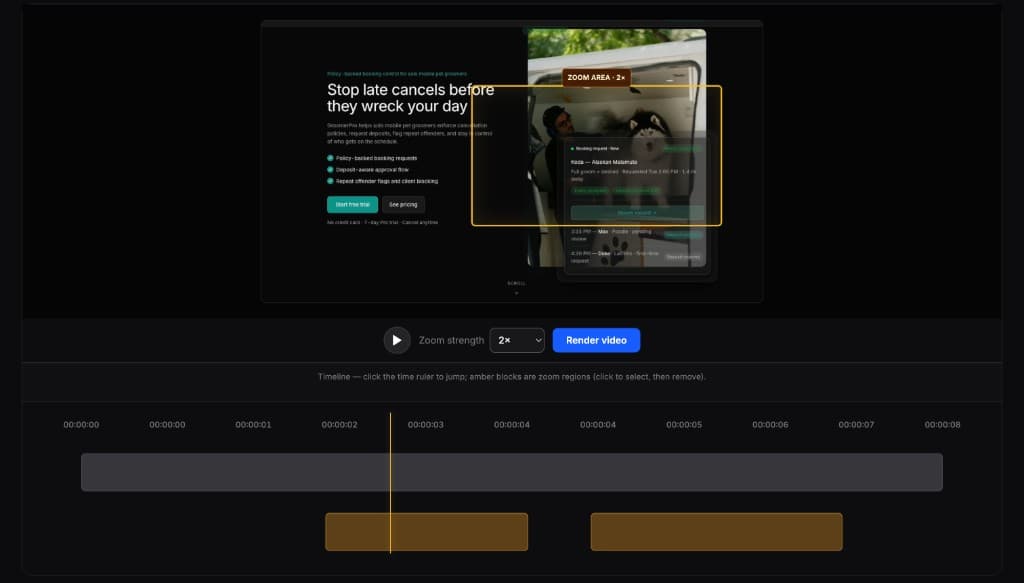
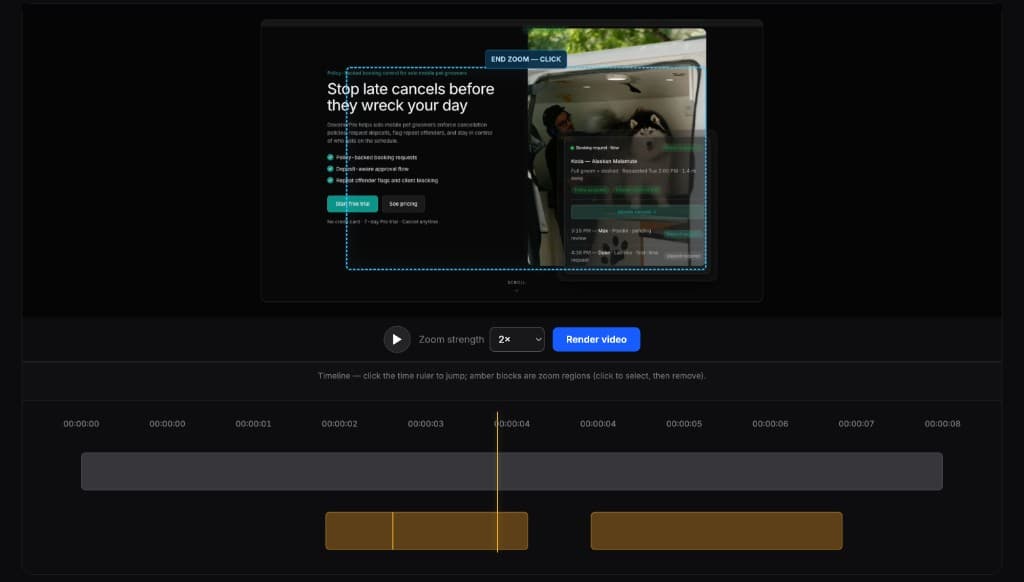
全能剪辑很强,但往往小题大作。FrameFocus 专注于演示、教程与指引所需的缩放剪辑。
Yes. FrameFocus can help improve recorded course lessons, especially when teaching software, coding, design, spreadsheets, or step-by-step workflows.
Yes. Zooming into important details can make lessons easier to watch on laptops, tablets, and phones.